 ArCaif
50+ Ready Templates in ArCaif — Stop Starting From Scratch Every Time You Post
Here's something nobody talks about enough when it comes to posting content regularly — the blank canvas problem.
You've got a good photo. Maybe a few good photos. You open your editing app and you're staring at an empty space, trying to figure out how to make something that looks intentional and put-together rather than just a photo you cropped and slapped a filter on. So you spend twenty minutes moving things around, trying different layouts, none of them looking quite right, and eventually you just post the plain photo anyway because you ran out of patience.
That's not a creativity problem. That's a starting point problem. And that's exactly what templates fix.
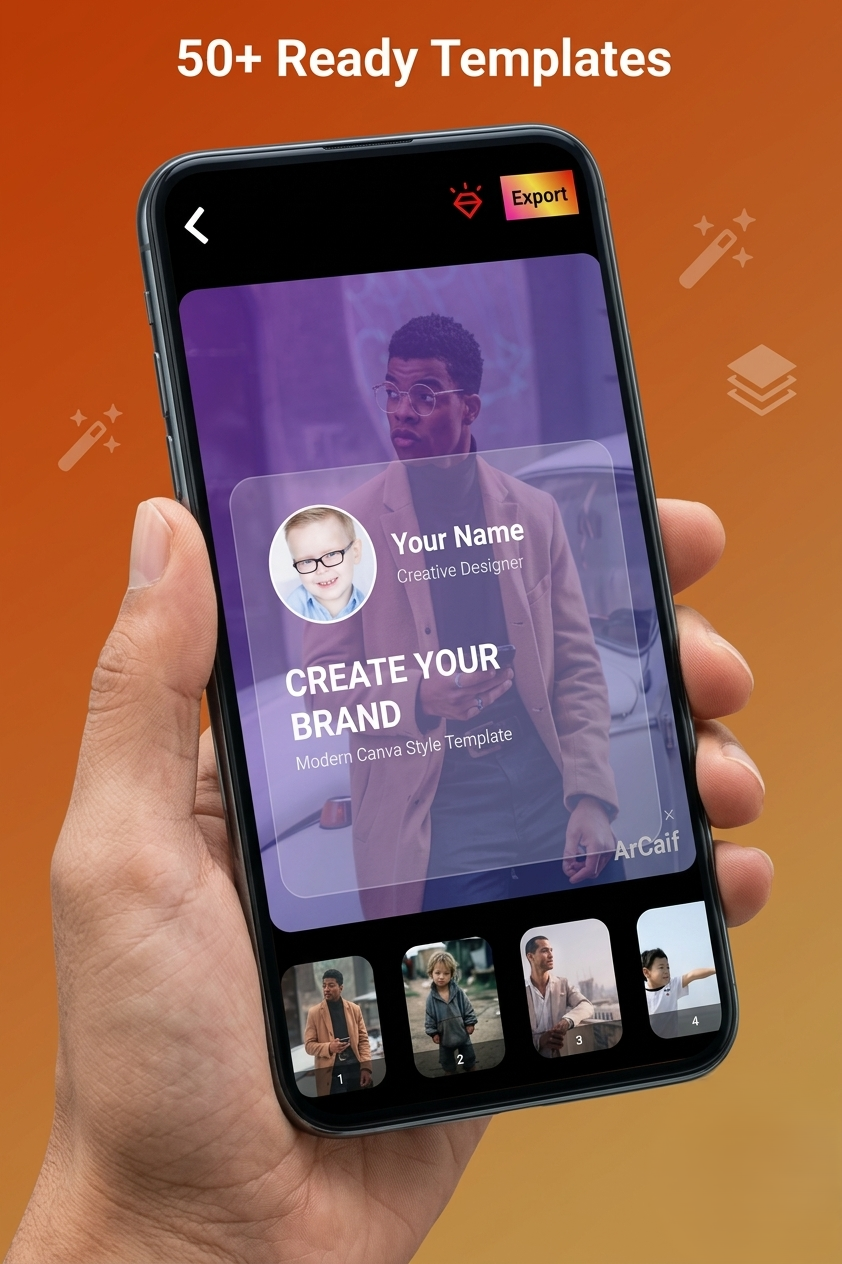
ArCaif has over 50 ready-made templates and collage layouts built into the app. You pick one, drop your photos in, adjust what you want, and you're done. This guide covers how they work, what kinds of layouts are available, who gets the most out of them, and how to use them without your posts all starting to look the same.
What a Template Actually Does for You
A template is a pre-built layout. Someone has already figured out where the photos go, how much space the text gets, what the proportions look like, how the elements are balanced. All the design decisions that take time and a decent eye to get right — they're already made.
You're not locked into it. You can change colors, swap fonts, move things around, add your own photos. The template is a starting point, not a finished product. But starting from a layout that already works is a completely different experience from staring at a blank screen.
The difference in time alone is significant. A post that might take you thirty minutes to build from scratch takes five minutes when you start from a template. Multiply that across every post you make in a week and that's a meaningful chunk of time back in your day.
The Collage Layouts — Showing Multiple Photos at Once
Collages are one of those things that look more complicated than they are. A collage is just multiple photos arranged together in a single image — but the arrangement matters. A bad collage looks crowded and random. A good one feels like the photos belong together.
ArCaif's collage layouts take care of the arrangement part for you. Here's what kinds of layouts you'll find and when each one makes sense.
Side by Side — Two Photos, Equal Space
The simplest collage. Two photos sitting next to each other with equal space. Works really well for before and after comparisons — a photo before and after editing, a product before and after using it, a space before and after a redesign. Also good for showing two related things together — two dishes from a meal, two angles of the same subject, two moments from the same day.
Keep it simple. If both photos are competing for attention equally, the viewer's eye doesn't know where to go first. Side by side works best when the two photos have a clear relationship and tell a small story together.
Grid — Four Photos in Equal Squares
The classic four-photo grid. Equal squares, clean lines, symmetrical. This one works well when you want to show a collection of things that are all equally important — four products, four moments from an event, four different angles of the same thing.
The grid is very structured and orderly. That's a strength when you want a clean, professional look. It can feel a bit rigid for more casual or personal content — in those cases one of the more varied layouts tends to feel more natural.
One Large, Two Small — The Featured Layout
One big photo taking up most of the space, two smaller ones beside or below it. This is the layout to use when you have one hero photo — the main shot — and a couple of supporting ones that add context.
Say you're posting about a place you visited. The main photo might be the view or the establishing shot of where you were. The two smaller ones could be a detail shot and a candid moment. Together they tell more of a story than any single photo could, but your best shot still leads.
This is probably the most versatile collage layout for general use because most situations do have one photo that's better than the others.
Three in a Row — Horizontal Strip
Three photos lined up horizontally, equal width. Works well for sequences — three moments from a process, three steps in a recipe, three stages of something changing over time. Also good for showing range — three different colorways of a product, three different looks or outfits, three shots from a shoot that show variety.
The horizontal format fits well in feed posts and works nicely as a thumbnail for YouTube or as a banner-style graphic.
Asymmetric Layouts — When You Want Something That Doesn't Look Like Everyone Else
These are the layouts where the photos aren't all the same size. One takes up more space than the others, the proportions are unequal, the whole thing feels a bit less rigid and more editorial. These tend to look more designed and less like you just used the default grid.
If you post a lot of content and you want your posts to have a distinct look, the asymmetric layouts are worth spending time with. They take slightly more thought about which photo goes in which spot — the largest space should get your strongest photo — but the results look noticeably different from what most people are posting.
The Post Templates — For When You Want More Than Just Photos
Beyond collages, ArCaif has post templates that combine photos with text, backgrounds, and graphic elements. These are the layouts used for things like quotes, announcements, promotional posts, product features, and any content where the text is as important as the image.
Quote Templates
A photo as the background, text over the top in a clean readable format. These work well for motivational content, sharing something worth saying, or adding context to a photo that needs words to land properly. The templates handle the text placement and sizing so it's readable without covering the most important part of the photo.
The key thing with quote templates is to use a photo that has a clear area — usually the sky, a wall, a floor, any relatively unbusy part of the frame — where the text can sit without competing with too much detail behind it. The templates are designed with this in mind and some of them include a subtle overlay or gradient behind the text to make it readable over any background.
Product Feature Templates
Clean layouts designed to show a product clearly with space for a name, a short description, and sometimes a price or call to action. If you're a small business owner doing your own content, these are genuinely useful. They give your product posts a consistent look without you needing to design anything from scratch.
Use your own product photo — ideally with the background already removed using ArCaif's background remover — and drop it into the template. The result looks like something a brand with a proper design team put together, not something made on a phone in ten minutes. Even if it was.
Announcement and Event Templates
Layouts for when you have something to say — a launch, a sale, a new post, an event. These templates tend to have bolder text areas and more graphic elements. They're built to grab attention in a feed rather than blend in with it.
These work especially well on Instagram stories and TikTok, where the full vertical format gives you more space to work with and the bold graphic style fits the context.
Thumbnail Templates
If you make YouTube videos or any content where you need a thumbnail, these are the ones to look at. Clean, bold, high contrast layouts with space for a title or text overlay. The platform presets in ArCaif mean you can size it correctly for YouTube automatically, and the thumbnail templates are designed to be readable even at small sizes — which matters because most people decide whether to click based on a thumbnail that's maybe two inches wide on their phone screen.
How to Make Templates Feel Like Yours and Not Everyone Else's
The concern people have with templates is that everything starts to look the same. If everyone is using the same layouts, what makes your posts distinct?
The honest answer is that the template is just the structure. What goes inside it — your photos, your colors, your fonts, your style of shooting — is still entirely yours. Two people using the same layout with different photos and different color choices will produce posts that look nothing alike.
That said, there are things you can do to push your posts further away from the default look.
Pick a color you use consistently. If you always use the same accent color in your templates — a specific shade of green, a warm terracotta, whatever fits your style — your posts start to build a visual identity over time. People scrolling your profile will recognize your content before they even read it.
Stick to one or two fonts. Mixing lots of different fonts in different posts makes a profile look scattered. Pick fonts that feel right for your content and use them consistently. ArCaif's text editor gives you enough control over size, weight, spacing, and color that you can make the same font look quite different depending on how you use it.
Use your own photos, not stock. Templates with generic stock images in them look like templates. Templates with your actual photos in them look like your content. Even a phone snapshot that's a bit imperfect feels more real and more you than a polished stock photo that could have come from anywhere.
Don't use the same layout every single time. Rotate between a few different templates. Your profile will have more variety and your posts will feel less formulaic. You can still maintain a consistent style through your color choices and fonts while mixing up the actual layouts.
Who Gets the Most Out of the Templates
Honestly, a pretty wide range of people.
If you post on Instagram regularly and you want your feed to look like you put thought into it — not just a dump of phone photos — the post templates and collage layouts are exactly what you need. You get a consistent visual style without having to spend an hour on every single post.
If you run a small business and you're doing your own social media content without a designer, the product templates and announcement layouts are genuinely useful. They give your content a professional look that you can replicate consistently without needing design skills.
If you make YouTube videos, the thumbnail templates save you time and give you thumbnails that are correctly sized and designed to actually get clicks.
If you post on TikTok and you want your photos and graphics to match the energy of the platform — bold, clear, visually confident — the vertical templates sized for stories and short-form content are built for that.
And if you just want to put a nice collage together from a set of photos before sharing them — a trip, an event, a day out — the collage layouts let you do that in a few minutes without fiddling with spacing and alignment yourself.
The Workflow — How to Actually Use These in Practice
Here's how a typical template session in ArCaif actually goes.
Open the app. Go to the templates or collage section. Scroll through the layouts until you find one that fits what you're trying to make — don't overthink it, just find something that has roughly the right structure for the number of photos you want to use and the type of content you're making.
Drop your photos in. If the template has a background, either use a photo of your own or pick a color that fits. If the layout has text areas, put in what you want to say — keep it short, the template is already doing visual work and too much text competes with it.
Adjust anything that doesn't feel right. Change a color, move the text position slightly, try a different font weight. You don't need to change everything — just fix the things that feel off.
Export. ArCaif exports in HD for free users, 4K Ultra HD if you're on Pro. For most social media posts HD is more than enough. For YouTube thumbnails and anything you want to look sharp at larger sizes, 4K is worth it.
The whole process — from opening the app to having an exported post ready to share — takes five to ten minutes once you're familiar with the templates. That's fast enough to be genuinely useful rather than just theoretically useful.
A Few Things Worth Knowing Before You Start
Not every template will suit every photo. Some layouts need photos that are roughly the same aspect ratio to look balanced. Some need a photo with a clear focal point in the center. Some need a photo that has a lot of empty space in one area for text to sit in. If a template isn't looking right with your photo, try a different template rather than trying to force it — there are over 50 to choose from and something will fit better.
The background remover and the templates work really well together. Remove the background from a product or portrait photo, then drop it into a template with a clean colored background. The result is much cleaner and more polished than trying to use a photo with a busy background in a template that isn't designed for it.
And use the platform presets when you're sizing for a specific place. Instagram feed posts, stories, TikTok, YouTube thumbnails — they all have different dimensions. ArCaif handles the sizing for you when you pick the platform, so you're not guessing or looking up specs.
Worth Trying Even If You Don't Think You Need It
A lot of people skip the templates section because they think it's for beginners or for people who can't design things themselves. That's a bit backwards. Templates are just efficient. They give you a working structure so you can focus on the content inside it rather than the structure itself.
Professional designers use templates and starting points all the time. The goal isn't to build everything from scratch — the goal is to make something that looks good and communicates what you want it to communicate. If a template gets you there faster, use it.
ArCaif is free to download. The templates are in there. Open one, drop a photo in, see how it looks. That's all you need to do to find out if it's useful for the kind of content you make.
Try the Templates Free in ArCaif